
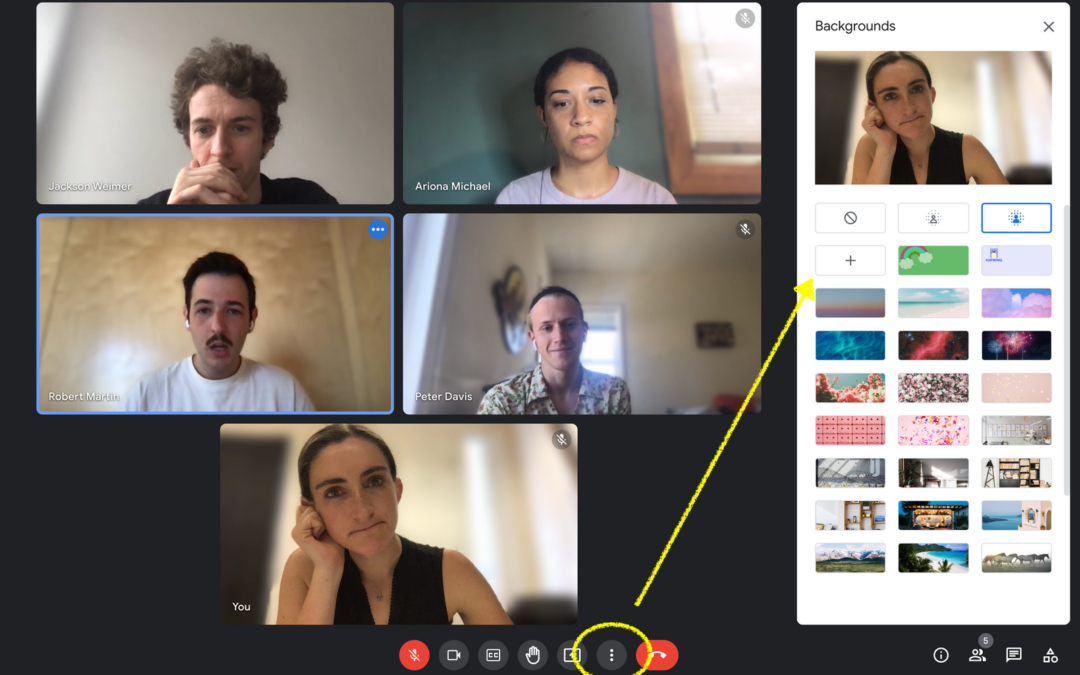
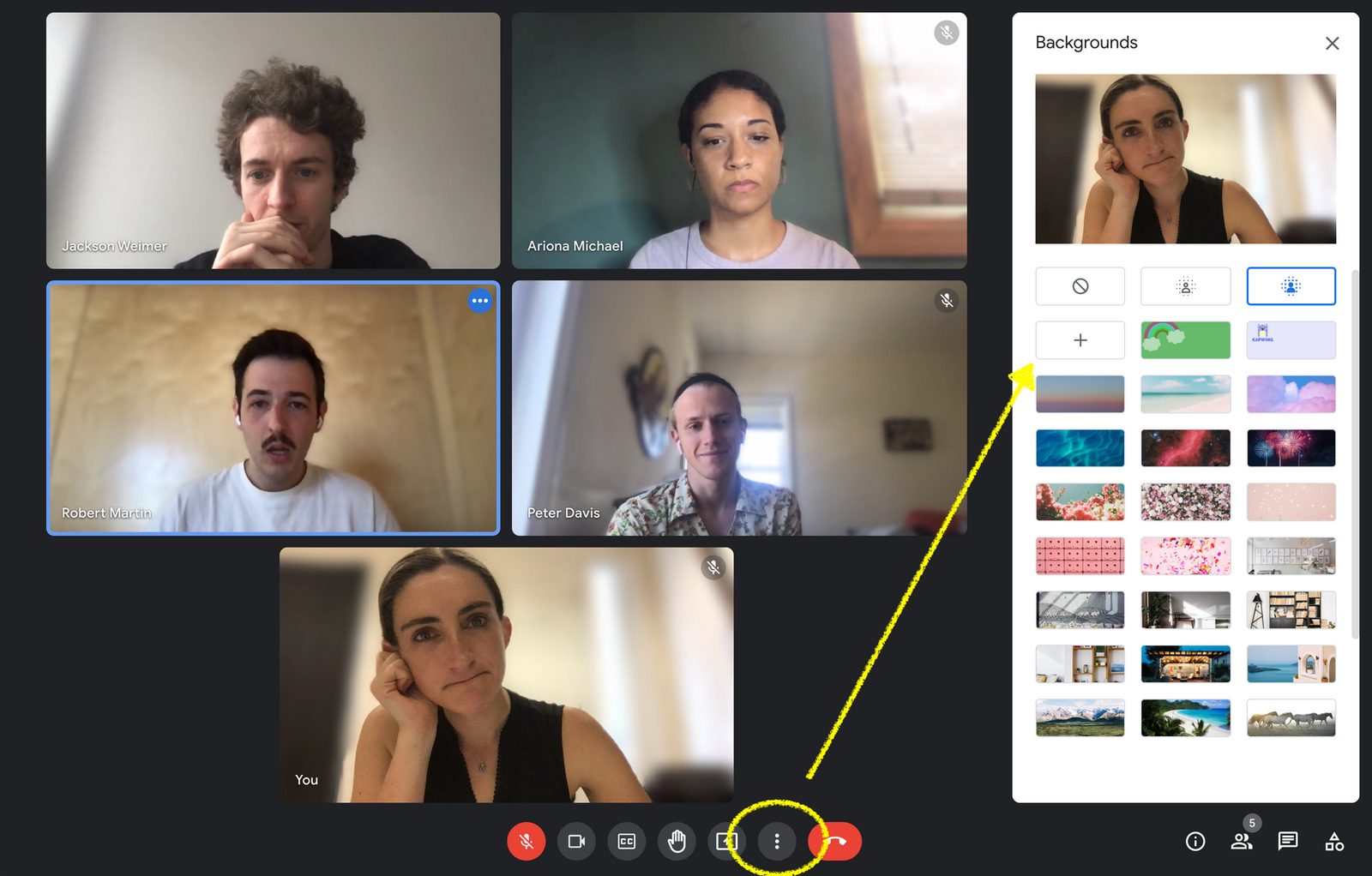
Google Meet is the default video call platform for anyone using Google Workspace — and one of the most flexible when it comes to virtual backgrounds. Unlike Microsoft Teams, Meet backgrounds work directly in your Chrome browser with no app download required. Setup takes under 60 seconds.
Before You Start — Google Meet Background Requirements
Desktop (Chrome browser):
- Google Chrome version 91 or later — this is the only browser that fully supports Meet backgrounds
- Firefox, Safari and Edge have limited or no background support on Meet
- A computer from 2016 or newer recommended
- No green screen required on modern hardware
Desktop app:
- Google Meet desktop app (available for Windows and Mac) supports background effects
Mobile:
- iPhone running iOS 13 or later (iPhone 7 or newer)
- Android phone running Android 9.0 or later
Chromebooks: Supported on most Chromebooks manufactured in 2017 or later running the latest Chrome OS.
How to Set a Google Meet Background Before Joining
- Go to meet.google.com and start or join a meeting via your link
- On the pre-join preview screen (before you click Join Now), look for the icon that shows a person silhouette with sparkles — click Apply visual effects
- A panel opens on the right side of your screen
- Under Backgrounds, click the + (upload) icon
- Browse to your ReadySteadyLive download folder and select your background image
- The background is applied immediately in your preview
- Click Join now to enter the meeting with your background active
Google Meet remembers your background selection. It will be applied automatically next time you join a meeting.
How to Set a Google Meet Background During a Live Meeting
- In an active Google Meet call, click the three dots (⋮) in the bottom right toolbar
- Click Apply visual effects
- The background panel opens on the right
- Click the + icon to upload a new image or select one from your existing library
- The change applies immediately — no interruption to your call
How to Add a Custom Background in Google Meet
- Open the background effects panel (before or during a meeting)
- Click the + upload icon at the top left of the backgrounds section
- Select your ReadySteadyLive image file
- Google Meet accepts JPG and PNG files
- The image is saved in your browser's local storage for future meetings
Important: Google Meet stores custom backgrounds locally in your browser. If you clear your browser cache or use a different browser or computer, you will need to re-upload your background.
Which file to use from your ReadySteadyLive pack:
| Folder | Resolution | Recommended for |
|---|---|---|
| 1-FullHD-1920x1080 | Full HD | All modern computers using Chrome |
| 2-HD-1280x720 | HD | Older computers or slower connections |
| 3-Medium-960x540 | Medium | Chromebooks or low-spec devices |
| 4-Mobile-480x270 | Mobile | iPhone and Android Meet app |
How to Set a Google Meet Background on iPhone
- Download and open the Google Meet app on your iPhone
- Start or join a meeting
- On the pre-join screen, tap the wand icon (Effects)
- Tap Backgrounds
- Tap the + icon to upload an image from your camera roll
- Select your ReadySteadyLive background
- Tap Done
During an active meeting on iPhone:
- Tap the three dots (⋮)
- Tap Effects
- Select or upload your background
How to Set a Google Meet Background on Android
- Open the Google Meet app on your Android phone
- Start or join a meeting
- Before joining, tap the Effects (wand) icon on the preview screen
- Tap Backgrounds
- Tap + to upload from your gallery
- Select your background and tap to apply
Fixing the Most Common Google Meet Background Problems
Problem: Background effects option doesn't appear
Solution: You are almost certainly using an unsupported browser. Google Meet backgrounds require Google Chrome version 91 or later. Switch from Firefox, Safari or Edge to Chrome. If you are already in Chrome, update it: click the three dots in the top right → Help → About Google Chrome → update if available.
Problem: Background looks pixelated or stretched
Solution 1 — Wrong aspect ratio. Google Meet will crop or stretch images that are not in 16:9 format. All ReadySteadyLive backgrounds are pre-formatted to 16:9 so this should not occur with our files.
Solution 2 — Low resolution file. Use the Full HD file from the 1-FullHD-1920x1080 folder for the sharpest result.
Problem: Background disappears when I rejoin
Google Meet stores backgrounds locally in your browser. This can reset after a browser update or cache clear. Simply re-upload your image from your ReadySteadyLive folder. Keep the folder easily accessible on your desktop.
Problem: Background works on desktop but not on my phone
This is expected — backgrounds need to be set separately on each device. Follow the mobile instructions above specifically for your phone.
Problem: My background makes my computer slow or choppy
Solution: Switch to a lower resolution file. Try the 2-HD-1280x720 folder first. If still choppy, try 3-Medium-960x540. Close other applications and browser tabs to free up memory.
Frequently Asked Questions
Does Google Meet support video backgrounds? Yes. Google Meet supports MP4 video backgrounds. Upload them the same way as images via the + upload button. Video backgrounds require more processing power than images.
Can I use Google Meet backgrounds without downloading an app? Yes — this is one of Meet's advantages over Teams. Backgrounds work directly in Chrome with no download required.
Do Meet backgrounds work on Chromebooks? Yes, on Chromebooks manufactured in 2017 or later running the latest Chrome OS.
Why does my background look good on my screen but bad to other participants? Other participants see your video stream, which is compressed for transmission. Use the Full HD file to give the compression algorithm more quality to work with. Better lighting also significantly improves how your background appears to others.
Your ReadySteadyLive Google Meet Setup Checklist
- Using Google Chrome version 91 or later
- Background uploaded from the 1-FullHD-1920x1080 folder
- Background visible and applied in the pre-join preview
- Face is well lit — facing a window or ring light
- Chrome is up to date
- Other browser tabs closed to free up memory