
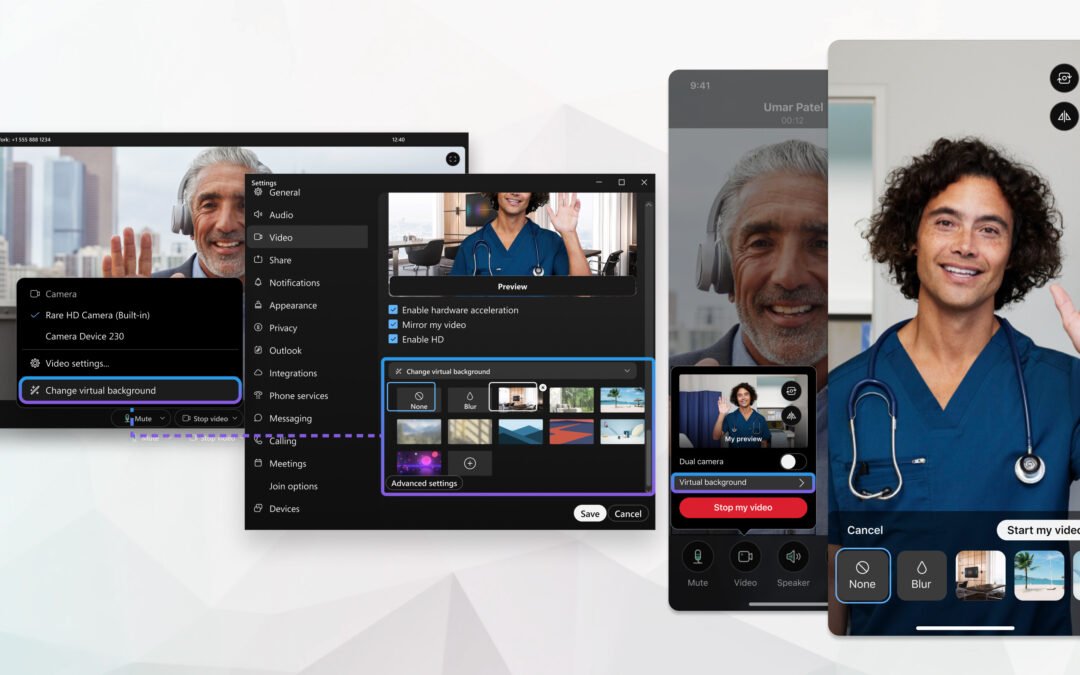
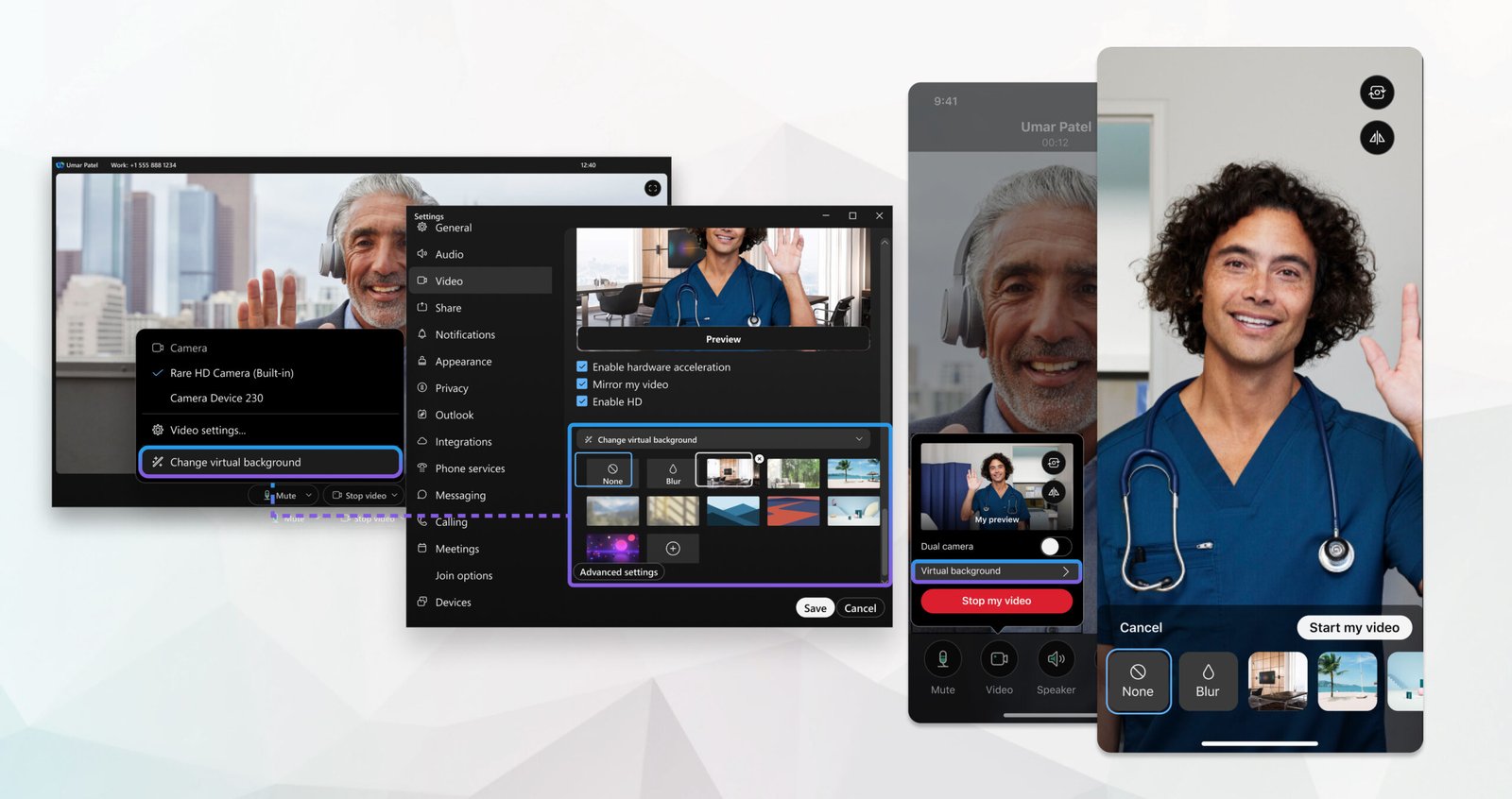
Cisco Webex is the preferred video call platform for many enterprise and government organisations. If your clients or employer use Webex, setting a professional background takes under 60 seconds and works on all modern hardware without a green screen.
Webex Background Requirements
Desktop:
- Windows 10 or later, or macOS 10.13 or later
- Webex desktop app (download at webex.com) version 41.1 or later
- Modern processor — Intel Core i5 (6th generation or newer) recommended
- 8GB RAM recommended
- No green screen required
Mobile:
- iPhone running iOS 13 or later
- Android running Android 8.0 or later
Note: Webex supports both image and video backgrounds.
How to Set a Webex Background Before a Meeting
Method 1 — From Webex Settings:
- Open the Webex desktop app
- Click your profile picture in the top right
- Select Settings
- Click Video in the left sidebar
- Under Virtual Background, click Add or the + icon
- Select your ReadySteadyLive background image
- Click Apply — this becomes your default background for all calls
Method 2 — From the meeting join screen:
- Click Join a Meeting or start a scheduled meeting
- On the pre-join preview screen, click the background icon (looks like a landscape image)
- Click Change Virtual Background
- Click Add to upload your image
- Select and apply
How to Set a Webex Background During a Live Meeting
- During an active Webex meeting, click the arrow (^) next to the Stop Video button
- Select Change Virtual Background
- Click Add to upload a new image or select one from your library
- Click Apply — the change takes effect immediately
How to Set a Webex Background on iPhone
- Open the Webex app on your iPhone
- Join or start a meeting
- During the call, tap the three dots (...) for more options
- Tap Virtual Background
- Tap the + icon to add from your camera roll
- Select your ReadySteadyLive background and apply
How to Set a Webex Background on Android
- Open Webex on your Android phone
- Join or start a meeting
- Tap the three dots (...) during the call
- Tap Virtual Background
- Tap + to select from your gallery
- Select and apply your background
Which ReadySteadyLive File to Use for Webex
| Folder | Resolution | Recommended for |
|---|---|---|
| 1-FullHD-1920x1080 | Full HD | All modern enterprise computers |
| 2-HD-1280x720 | HD | Older computers |
| 3-Medium-960x540 | Medium | Low-spec devices |
| 4-Mobile-480x270 | Mobile | iPhone and Android |
Webex performs particularly well with Full HD images. Start with the 1-FullHD-1920x1080 folder.
Fixing Common Webex Background Problems
Virtual background option is missing
Update the Webex app to the latest version. Background effects require Webex version 41.1 or later. Go to Help → Check for Updates.
Background appears choppy or slow
Close other applications. Webex background processing is CPU-intensive. If performance issues persist, switch to the 2-HD-1280x720 file from your ReadySteadyLive pack.
Edges around me look rough or blurry
Face a light source directly — a window or ring light. Webex's AI edge detection works significantly better with good front lighting. Also ensure your clothes contrast with your background colour.
Background not available in browser Webex
Virtual backgrounds require the Webex desktop app. If you are using Webex in a browser, download the app at webex.com.
Frequently Asked Questions
Does Webex support video backgrounds? Yes. Webex supports both image and video virtual backgrounds. Select Add Video when uploading from your ReadySteadyLive pack. Video backgrounds require a more powerful processor.
Do Webex backgrounds require admin approval in enterprise accounts? In some enterprise Webex configurations, IT administrators can restrict background effects. If the option is not available, contact your IT team.
Can I use the same backgrounds for Webex and Zoom? Yes. All ReadySteadyLive backgrounds are in 16:9 JPG format — compatible with Webex, Zoom, Teams, Meet and Skype. One download works everywhere.
Your ReadySteadyLive Webex Setup Checklist
- Webex desktop app installed and updated to version 41.1 or later
- Background uploaded from the 1-FullHD-1920x1080 folder
- Background visible in Webex settings preview
- Face is well lit — facing a window or ring light
- Other applications closed to free up processing power
- Tested before the meeting starts