

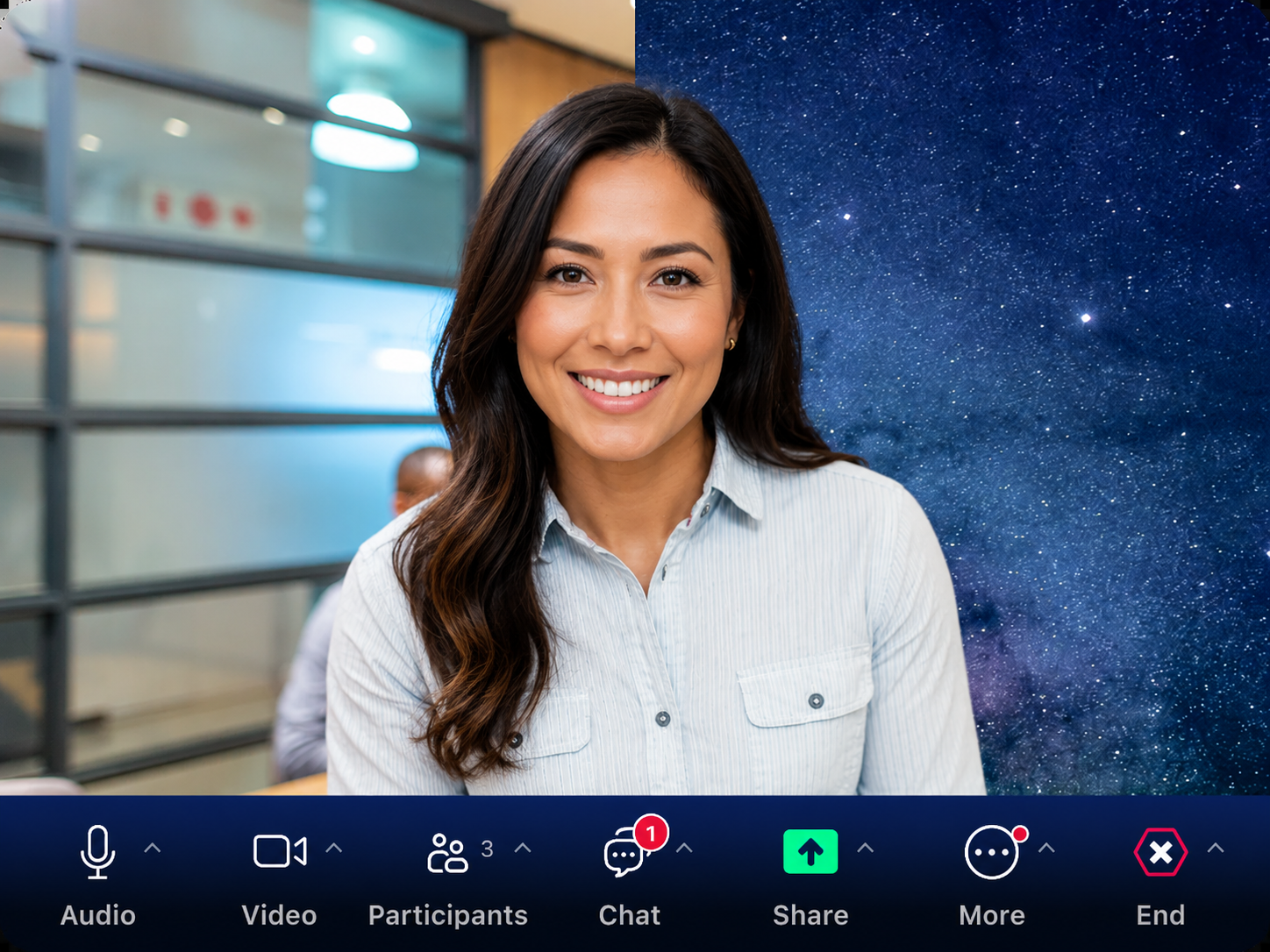
You have one chance to make a great first impression on every Zoom call. Setting a professional virtual background takes less than 60 seconds and can completely change how clients, colleagues and interviewers see you — before you say a single word.
This guide covers every device, every operating system, and every common problem you might run into.
Before You Start — Does Your Computer Support Zoom Backgrounds?
Not every device can run virtual backgrounds. Here's what Zoom requires:
Windows:
- Windows 10 or later (64-bit)
- Intel Core i5 (4th generation or newer) or AMD Ryzen 5 equivalent
- 8GB RAM recommended
- Zoom desktop app version 5.0 or later
Mac:
- macOS 10.13 (High Sierra) or later
- Apple M1, M2, or M3 chip — or Intel Core i5 (2015 or newer)
- 8GB RAM recommended
Without a green screen: Most computers manufactured from 2016 onwards handle virtual backgrounds without a physical green screen. Older computers may show the option greyed out.
If the option is greyed out: You either need a green screen, or your Zoom app needs updating. Start with the update — it fixes the problem in most cases.
How to Set a Zoom Virtual Background on Windows or Mac
Before a meeting (recommended — takes 30 seconds):
- Open the Zoom desktop app and sign in
- Click your profile picture in the top right corner
- Select Settings from the dropdown
- Click Background & Effects in the left sidebar
- Click the + icon under Virtual Backgrounds
- Select Add Image and choose your background file
- Click on the image to apply it — it will be active for all future meetings
During a live meeting:
- Click the small arrow (^) next to the Stop Video button at the bottom of your screen
- Select Choose Virtual Background
- Click + to upload a new image or select one already in your library
- The change takes effect immediately
Pro tip: Set your background before joining important calls rather than during. There is a brief 1–2 second transition when you switch live that other participants can see.
How to Set a Zoom Background on iPhone
- Open the Zoom app on your iPhone
- Start or join a meeting
- Tap More (three dots) in the bottom right corner
- Tap Virtual Background
- Tap the + icon to add an image from your camera roll
- Select your background image and tap anywhere to close
Compatible iPhones: iPhone 8 or newer running iOS 14 or later. The virtual background option will not appear on older devices.
How to Set a Zoom Background on Android
- Open the Zoom app on your Android phone
- Start or join a meeting
- Tap More (three dots)
- Tap Virtual Background
- Tap + to add a photo from your gallery
- Select your background and tap to apply
Compatible Android phones: Most Android phones from 2019 onwards running Android 8.0 or later. Performance varies by device.
What File Format and Size Works Best for Zoom?
For the sharpest result, use these specifications:
| Setting | Recommended |
|---|---|
| Aspect ratio | 16:9 (widescreen) |
| Resolution | 1920×1080 Full HD minimum |
| File format | JPG or PNG |
| File size | Under 5MB |
All ReadySteadyLive backgrounds are pre-formatted to these exact specifications. Download and use immediately — no resizing needed.
Resolution Guide — Which File to Use
Your ReadySteadyLive pack includes four resolution options. Here's which to use:
| File folder | Resolution | Best for |
|---|---|---|
| 1-FullHD-1920x1080 | Full HD | All modern laptops and desktops |
| 2-HD-1280x720 | HD | Older computers or slower connections |
| 3-Medium-960x540 | Medium | If your background appears choppy |
| 4-Mobile-480x270 | Mobile | iPhone and Android |
Start with the Full HD folder. Only switch to a lower resolution if your background appears choppy or your computer slows down during calls.
Fixing the Most Common Zoom Background Problems
Problem: Virtual background option is greyed out or missing
Solution 1 — Update Zoom. This is the most common cause. Click your profile picture → Check for Updates. Background support requires Zoom version 5.0 or later.
Solution 2 — Enable it in web settings. Sign in at zoom.us → Settings → In Meeting (Advanced) → toggle Virtual Background to ON. Restart the Zoom app.
Solution 3 — Your device may not meet requirements. Check the hardware requirements above. A physical green screen can enable backgrounds on devices that otherwise don't support them.
Problem: Background looks blurry or pixelated
Solution: You are using a low-resolution image. Switch to the Full HD file from the 1-FullHD-1920x1080 folder in your ReadySteadyLive pack.
Problem: Blurry edges around my outline — I'm bleeding into the background
Solution 1 — Improve your lighting. Face a window or use a ring light. Zoom's AI background detection works by contrasting you against the background. Poor lighting makes this harder.
Solution 2 — Wear clothes that contrast with your background. If your background has warm beige tones and you're wearing a beige shirt, the AI gets confused. Wear a darker or contrasting colour.
Solution 3 — Use a green screen. A physical green screen gives perfectly clean edges regardless of hardware or lighting.
Problem: My background turns off mid-call
Solution: This is usually caused by battery saver mode reducing Zoom's processing power. Plug your laptop in and disable battery saver before important calls.
Problem: Background set on desktop but not showing on phone
Zoom backgrounds are set per device. You need to set the background separately on each device you use. Mobile backgrounds are set within the meeting as described above.
Frequently Asked Questions
Do I need a green screen to use Zoom virtual backgrounds? No. Modern computers handle virtual backgrounds without a green screen using AI edge detection. A green screen improves the quality of the edge around your outline but is not required.
Can I use a video as a Zoom virtual background? Yes. Zoom supports MP4 and MOV video files. Select Add Video instead of Add Image when uploading. Video backgrounds require more processing power than image backgrounds.
Will people know I'm using a virtual background? With a high-quality Full HD background and good lighting, most people cannot tell. The tell-tale signs of a virtual background — edge blurring and flickering — are caused by low-resolution images or poor lighting, not the technology itself.
Can I save multiple backgrounds and switch between them? Yes. Zoom stores all backgrounds you upload in your library. You can switch between them at any time during or before a meeting.
Why does my background look fine in settings but bad during calls? Your computer may be reducing performance during the call to manage bandwidth and CPU load. Close other applications and browser tabs before joining important calls.
Your ReadySteadyLive Setup Checklist
Before every important call, run through this quickly:
- Background is set and visible in Zoom preview
- Using Full HD file from the 1-FullHD-1920x1080 folder
- Face is well lit — facing a window or ring light
- Wearing clothes that contrast with your background
- Zoom app is up to date
- Laptop is plugged in (not running on battery saver)
- Background tested on the device you'll use for the call
Need help? Contact us and we'll get you set up within one business day.